How to label GitLab notification in Gmail by headers?
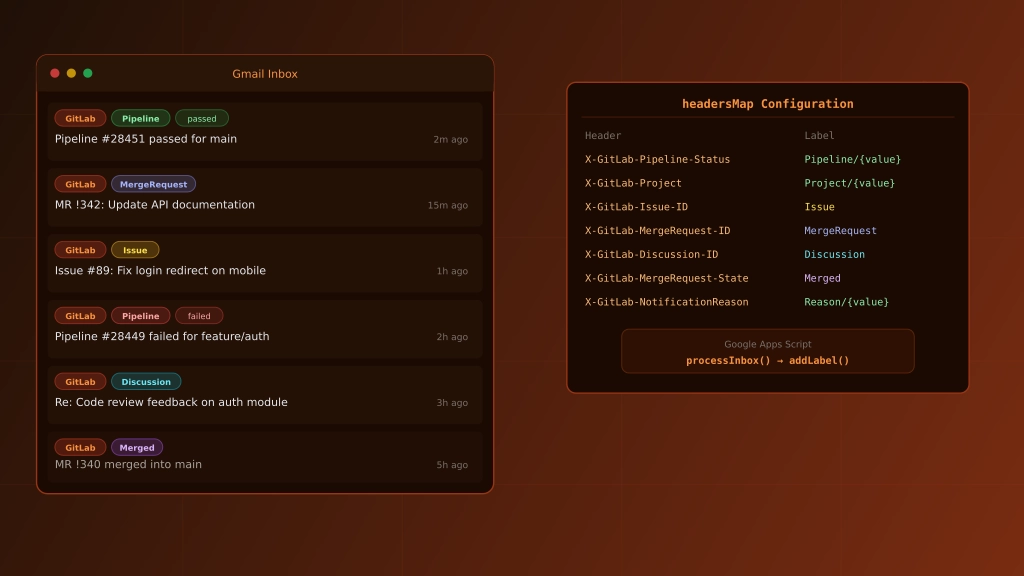
Updated on 24-02-2026: Improved the script to use getHeader() instead of raw body search, added data-driven header configuration, and auto-creation of labels.
📨 How GitLab sends notifications?
GitLab allows you to stay informed about what’s happening in your projects sending you the notifications via email. With enabled notifications, you can receive updates about activity in issues, merge requests or build results. All of those emails are sent from a single address which without a doubt makes it harder to do successful filtering and labeling.
However GitLab adds custom headers to every sent notification to allow you to better manage received notification and for example, you could add a label to all emails with pipelines results to mark them as important. Similarly, you could make the same scenario for notification about the issue assigned to you. Some of the headers that you can find in emails are:
| Header name | Reason of message |
|---|---|
X-GitLab-Project | Notification from project |
X-GitLab-Issue-ID | Notification about a change in issue. |
X-GitLab-MergeRequest-ID | Notification about a change in merge request. |
X-GitLab-Pipeline-Id | Notification about the result of pipeline. |
As can be seen above headers allow you to create example condition: if the email contains the header X-GitLab-Issue-ID then add a label “GitLab Issue”.
Of course, there are more headers available. The full list of headers, which GitLab can include to emails is available in the section “Filtering email” of GitLab documentation. Every header also contains a value. Some headers contain an ID, some contain names of projects. You can check out them in the documentation.
📥 How to filter emails in Gmail by header?
To automatically add labels in Gmail you have to create a filter. However, it does not allow to filter by headers. But this is not impossible.
Google provides a special service called Google Apps Scripts. It allows you to write short scripts in JavaScript, where you can extend default Gmail filtering.
⌨️ How can I add a label to message by headers?
Firstly you have to begin with function, which will be scheduled to query for new emails in the inbox and will execute further message processing:
function processInbox() {
   // process all recent threads in the Inbox
   var threads = GmailApp.search("in:inbox from:gitlab@* newer_than:1h");
   for (var i = 0; i < threads.length; i++) {
      // get all messages in a given thread
      var messages = threads[i].getMessages();
      for (var j = 0; j < messages.length; j++) {
         var message = messages[j];
         processMessage(message); // function to process the message
      }
   }
}
As you see, the code is pretty simple. It uses search() function from GmailApp which allows you to interact with Gmail service. The search query "in:inbox from:gitlab@* newer_than:1h" filters only GitLab emails from the last hour. After that we have to get the message content. We can do it by writing a loop to get every message from a thread. The getMessages() function returns a list of Gmail Messages objects. Having them we can implement our actions based on the content.
To do that you can use the getHeader() function on the message object to read a specific email header by name. For example, to check the pipeline status:
var status = message.getHeader("X-GitLab-Pipeline-Status");
if (status) {
  // header exists - this is a pipeline notification
}
This is more reliable than searching the raw email body for header names, which could produce false positives if the header name appears in the message text.
To make the script easy to extend, we can define a configuration map that describes which headers to look for and what labels to apply. The full script looks like this:
// Label to apply on any GitLab match
var mainLabel = "GitLab";

// Configuration: header → label mapping
// nestValue: true  → creates sub-label with the header value, e.g. Pipeline/failed
// matchValue: "x"  → only applies the label when the header value equals "x"
var headersMap = {
  "X-GitLab-Pipeline-Status":      { "label_name": "Pipeline",   "nestValue": true },
  "X-GitLab-Project":              { "label_name": "Project",    "nestValue": true },
  "X-GitLab-NotificationReason":   { "label_name": "Reason",     "nestValue": true },
  "X-GitLab-Issue-ID":             { "label_name": "Issue" },
  "X-GitLab-MergeRequest-ID":      { "label_name": "MergeRequest" },
  "X-GitLab-Discussion-ID":        { "label_name": "Discussion" },
  "X-GitLab-MergeRequest-State":   { "label_name": "Merged",     "matchValue": "merged" },
};

function processInbox() {
  var threads = GmailApp.search("in:inbox from:gitlab@* newer_than:1h");
  for (var i = 0; i < threads.length; i++) {
    var messages = threads[i].getMessages();
    for (var j = 0; j < messages.length; j++) {
      processMessage(messages[j]);
    }
  }
}

function processMessage(message) {
  var firstMatch = true;
  for (var header in headersMap) {
    var val = message.getHeader(header);
    if (val) {
      if (firstMatch) {
        firstMatch = false;
        addOrCreateLabel(mainLabel, message);
      }
      var labelText = headersMap[header]["label_name"];
      if (headersMap[header]["matchValue"]) {
        if (val != headersMap[header]["matchValue"]) continue;
      } else if (headersMap[header]["nestValue"]) {
        labelText += "/" + val;
      }
      addOrCreateLabel(labelText, message);
    }
  }
}

function addOrCreateLabel(labelText, message) {
  var label = GmailApp.getUserLabelByName(labelText);
  if (!label) {
    label = GmailApp.createLabel(labelText);
  }
  message.getThread().addLabel(label);
}
The headersMap at the top is the only thing you need to edit to add new labels - no code changes required. Labels are created automatically if they don’t exist yet.
▶️ How to turn on the script processing for you Gmail inbox?
-
Go to Google Apps Scripts.
-
Create a new project, put your code and save.
-
From the Web IDE you can perform the execution to check for errors. Select function
processInboxand click Play button:
-
You will be asked to permit a project access to your Gmail data. Choose your account:
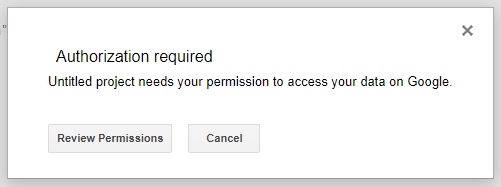
-
After successful authorization, you can re-run the project. It will be immediately executed.
-
When there is no errors, create a custom trigger. Find button:

-
Click “Add trigger” button at the bottom of the page.
-
Select function
processInboxand configure the time source. The execution frequency is your choice. If you receive a lot of messages and you will run this script every 1 minute you can hit the limits. In the above script, I am scanning for emails from the last hour so the script can be executed at least once an hour.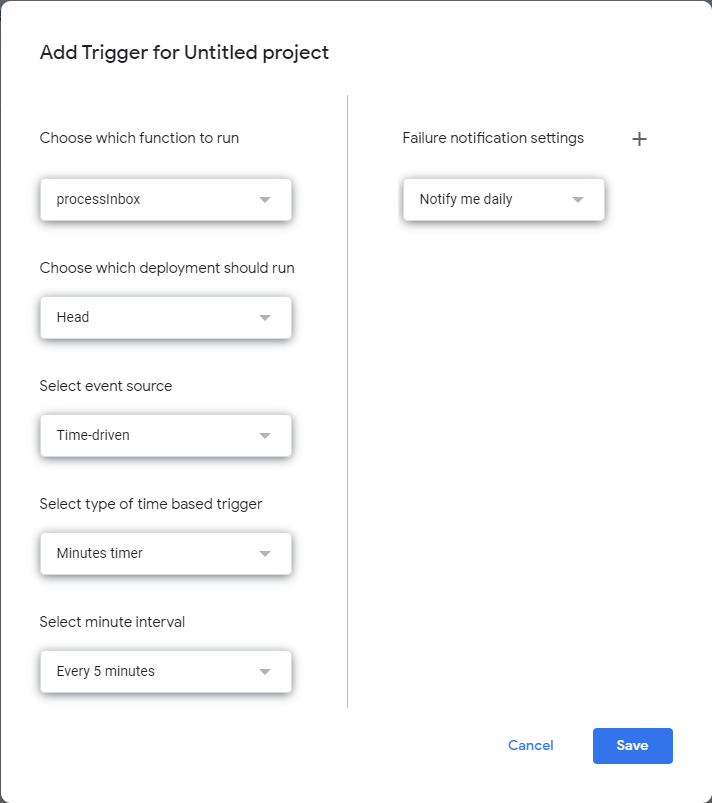
🏁And that’s it!
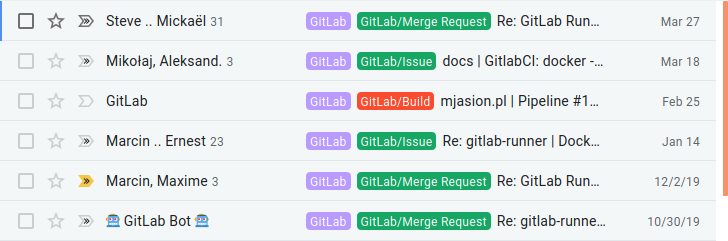
Google should now start executing your script and checking for new emails to make actions which you just implemented. The result of running this script is to label new emails from GitLab as you want 🤗.
📖 Summarize
Gmail filters are sufficient for most users’ needs. However, if your use case is more advanced, Google Apps Scripts comes to the rescue. It doesn’t require deep programming knowledge and by searching online you can solve your problems. Remember that you can have multiple scripts to process your inbox.
Did you know about Google App Scripts before? Please share how are you using them in the comments below.

Senior Platform Engineer